How to register Digital Key 2 (Smart phone)
Kia Digital Key 2 is compatible exclusively with smartphones that support this advanced technology. Please verify
your smartphone's compatibility by checking your manufacturer's official app store to download the required
application. Note that not every smartphone model is supported for use with your Kia Carnival.
Operational Note: During an active update of the Digital Key 2 controller, the standard smart key
functionality may be temporarily interrupted. In such an event, please utilize the physical lock/unlock buttons on
your traditional smart key fob to operate your vehicle.
Smartphone Set Up
To initialize the Digital Key 2 function for your Kia Carnival, download and install the official Kia Access App on
your smartphone, create your account, register your personal information, and subscribe to the service to ensure full
functionality.
Smartphone Registration
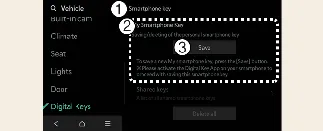
- Smartphone key settings
- My Smartphone key profile
- Save configuration
-
Start the engine of your Kia Carnival using your physical Smart key. It is essential that you keep the physical
smart key inside the vehicle throughout the entire duration of the digital key registration process.
-
Shift the transmission into P (Park). Open the "Digital Key Settings" menu on the infotainment system and
select "Register" within the Kia Access app on your smartphone, then follow the on-screen prompts to complete
the pairing.
-
For smartphones without UWB support: Place the NFC antenna of your smartphone securely
on the center of the Kia Carnival wireless charging pad (A).
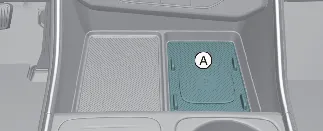
A: Wireless charging pad / Authentication area
-
For smartphones with UWB support: If your device supports Ultra-Wideband technology, you
do not necessarily need to place the phone on the charging pad (A). Simply having the smartphone within
the Kia Carnival cabin is sufficient to register the digital key wirelessly.
-
Select the "Save" menu on your Kia Carnival infotainment system display. The system will automatically begin
the secure saving process.
-
Once the digital key data has been successfully saved to your smartphone, a confirmation message will appear on
the Kia Carnival instrument cluster or the infotainment screen.
-
Remove your smartphone from the in-vehicle authentication pad (if applicable) and finalize the setup by
following the concluding instructions displayed on your smartphone screen.
When it is not registered on the Kia Access app on your smartphone
If you place your smartphone on the indoor authentication pad and the "Registering..." message fails to appear on
your Kia Carnival infotainment system screen, please follow these alternative steps to manually initiate the
registration process:
-
Ensure the vehicle is powered OFF. Then, use your physical smart key to turn the Kia Carnival back to the ON
position, ensuring the smart key remains inside the vehicle for the duration of the setup.
-
With the vehicle transmission in the P (Park) position, navigate the infotainment screen to: Setup →
Vehicle → Digital Keys → Smartphone key → My Smartphone Key.
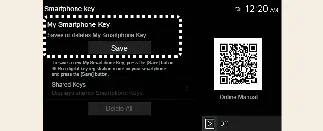
-
Place your smartphone with the NFC antenna aligned over the center of the indoor authentication pad (also known
as the wireless charging pad). The system should now detect the device and begin the pairing sequence.
Once the digital key data is securely saved, a confirmation message will be displayed on the Kia Carnival
infotainment system screen.
 NOTICE
Please note that if you are using power-intensive smartphone applications (such as Android Auto) while the device is
on the charging pad, charging may be delayed or interrupted. This behavior is a protective measure to prevent
smartphone overheating and does not indicate a malfunction of the wireless charging system in your Kia Carnival. If
this occurs, we recommend removing the smartphone from the pad to allow it to cool down.
 NOTICE
-
The interface and menus of your infotainment system may be updated following official software releases. For
the most accurate and up-to-date instructions on configuring your digital key settings, always refer to the
digital user's manual integrated into the Kia Carnival infotainment system and the provided quick reference
guide.
-
If you encounter persistent registration issues, ensure that your smartphone's NFC feature is enabled and that
no thick cases or metallic objects are interfering with the signal between the phone and the Kia Carnival
authentication pad.
Managing Digital Key 2 settings
-
Vehicle Settings: When a digital key (smartphone) has already been successfully registered to
your Kia Carnival, the option "Delete All" will appear on the Smartphone Key menu screen of the infotainment
system, while "Delete" will be available on the My Smartphone Key screen. If you ever need to register a
digital key again after deletion, please refer to the "Smartphone Registration" section for detailed steps.
-
Smartphone Settings: Please note that a new digital key cannot be saved to the Kia Carnival if
a previous digital key is still active and saved in the owner's smartphone. You must first delete the existing
digital key from the Kia Access App before attempting to save a new one.
-
Registration Interruptions: During the Digital Key 2 saving process for your Kia Carnival, the
registration will be automatically cancelled if any of the following events occur:
-
The smartphone is removed from the in-vehicle authentication pad (wireless charging pad).
-
You navigate away from the digital key setup menu on the infotainment system.
-
The vehicle's ignition is turned OFF.
-
The transmission gear is shifted out of P (Park).
-
The physical smart key is not detected inside the Kia Carnival cabin (the process will not even initiate
without it).
-
Authentication Pad Tips: Because the internal NFC antenna placement varies by smartphone
model, the in-vehicle authentication pad might not establish a connection immediately. If registration fails,
try slightly adjusting the position of your smartphone by moving it to the left or right across the center of
the charging pad.
-
Technology Definitions: For your reference, UWB (Ultra-Wideband) refers to a high-precision
short-range wireless communication technology, while NFC (Near Field Communication) is a standard short-range
wireless protocol used for secure, proximity-based data exchange.
-
Pro-Tip for Kia Carnival Owners: For the most reliable connection, ensure your smartphone is
removed from any bulky, metallic, or magnetic cases, as these can significantly block the NFC signal required
for seamless communication with your Kia Carnival.
How to Use the Digital Key 2 (Smartphone)
Smartphone Touch Control
As a driver of the Kia Carnival, you can enjoy seamless access to your vehicle. You can lock or unlock the doors
simply by touching your registered smartphone to the exterior door handle—no need to open the Kia Access App. To
start your Kia Carnival, simply place your smartphone on the wireless charging pad. Please ensure that your
smartphone's NFC antenna is correctly positioned against the authentication area on the door handle.
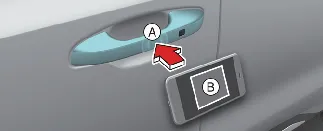
A: Door handle authentication pad
B: Location note: Smartphone NFC antennas vary by manufacturer.
For most devices, such as the Apple iPhone, the NFC antenna is located at the top rear of the phone, while on an
Apple Watch, it is centered on the screen. Generally, the antenna is located in the same spot used for contactless
payments. If you are unsure where your device's NFC antenna is located, consult your smartphone manufacturer's
documentation for precise details.
Locking/Unlocking the doors
-
By touching your smartphone’s NFC antenna to the Kia Carnival driver's or passenger's door handle
authentication pad for more than 2 seconds, the vehicle will toggle between locked and unlocked states.
-
Following a successful unlock command, if no door or the liftgate is opened within 30 seconds, the Kia Carnival
will automatically re-lock to maintain vehicle security.
-
If the digital key does not respond immediately, move your smartphone at least 4 inches (0.1 m) away from the
door handle authentication pad, wait a moment, and try the tapping procedure again.
For smartphones without UWB support:
To lock or unlock your Kia Carnival using a smartphone without Ultra-Wideband (UWB) capabilities, firmly touch the
NFC antenna area of your smartphone to the authentication pad on the exterior door handle for approximately 2
seconds.
For smartphones with UWB support:
 WARNING
-
If your smartphone is stored deep inside a bag or back pocket, signal transmission may be obstructed. This can
weaken the Bluetooth connection and lead to operational delays when locking, unlocking, or attempting to start
your Kia Carnival.
-
Note that window tinting films containing metallic components may interfere with radio frequencies and cause
the Digital Key 2 system in your Kia Carnival to malfunction.
 NOTICE
The Kia Carnival Digital Key 2 will unlock the doors and sound a confirmation beep in the following specific
scenarios:
-
If a physical Smart Key is still detected inside the vehicle.
-
If the vehicle is currently in the ACC or ON ignition state.
-
If you attempt to lock the doors while one or more doors, the hood, or the liftgate remain open.
-
If a metallic-based tinting film is applied directly to the smartphone or near the digital key sensors, it may
block signals and prevent the feature from functioning properly.
Starting the vehicle
To start your Kia Carnival using Digital Key 2, simply place your registered smartphone on the wireless charging pad.
Once positioned, depress the brake pedal firmly and press the ENGINE START/STOP button to ignite the engine.
For more detailed information on vehicle startup procedures, please refer to the "Starting the Engine" section of
your owner's manual.
For smartphones without UWB support:
-
Position the NFC antenna area of your smartphone on the center of the wireless charging pad, apply pressure to
the brake pedal, and then press the ENGINE START/STOP button to initiate the startup sequence.
-
Once the Kia Carnival engine is running, you can safely remove your smartphone from the charging pad.
-
If your device does not establish a connection immediately, please note that some smartphone designs can
interfere with NFC communication. If this happens, gently slide your device to the left or right across the
charging pad until the vehicle recognizes the key.
For smartphones with UWB support:
-
For maximum convenience in your Kia Carnival, you only need to carry your smartphone anywhere inside the cabin.
Simply depress the brake pedal and press the ENGINE START/STOP button to start the vehicle without needing to
place the phone on the pad.
-
To start the Kia Carnival remotely, use the official manufacturer's app. Lock the vehicle using the door lock
button, then press the remote start button within a 4-second window. The vehicle will start, and the hazard
warning lights will flash to confirm the status.
-
To power off the vehicle remotely, simply press the remote start button again within the app.
Operating the liftgate
For smartphones with UWB support:
 WARNING
The Kia Carnival engine can be started whenever a registered smartphone is detected on the authentication (wireless
charging) pad. Therefore, never leave unsupervised children or individuals unfamiliar with the vehicle's systems
inside, as this could lead to unintended vehicle movement, serious injury, or death. Always keep your registered
smartphone with you and never leave it in the vehicle when you are away to prevent unauthorized use or potential
theft.
 NOTICE
Please note that the initial operation of Digital Key 2 for a shared user may take slightly longer than subsequent
uses while the system synchronizes.
When using the Digital Key 2, approach the door handle authentication pad until the lock/unlock function engages. If
you are using the in-vehicle authentication pad for the first time, it may require a moment to initialize; if it does
not respond immediately, ensure the device is perfectly aligned with the center of the pad.
How to delete Digital Key (Smartphone)
To safely manage or remove your Digital Key 2 (smartphone) from your Kia Carnival, first ensure the vehicle is turned
ON using a physical smart key. It is essential to keep that smart key inside the vehicle cabin throughout the entire
deletion process.
-
To Delete All Digital Keys: This action will remove all associated smartphone keys from the
system.
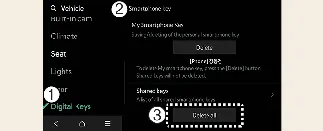
- Digital Keys
- Smartphone key
- Delete all
With the vehicle in the ON position, navigate the infotainment screen: Setup → Vehicle → Digital Keys
→ Smartphone key → Delete all.
- Note: Both the owner's primary key and any shared user keys will be permanently deleted from the Kia
Carnival system.
- If no digital keys are currently registered, this menu option will be unavailable.
-
To Delete My Smartphone Key: Use this option if you wish to remove only your personal key.
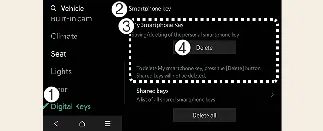
- Digital Keys
- Smartphone key
- My Smartphone Key
- Delete
If you need to replace or update only the owner's smartphone key while retaining access for shared users,
select "Delete" specifically for the owner's key rather than "Delete All," and then perform the "Save" process
again.
 NOTICE
- Deleting the digital key from the Kia Carnival infotainment system will also automatically remove the
corresponding key stored on your smartphone.
- Conversely, if you delete the digital key via your smartphone's wallet/settings app, the key record in the
vehicle will also be erased.
- The vehicle's infotainment system does not provide a direct function to delete a shared user's key; this must be
managed via the primary owner's app.
- Simply deleting the Kia Access App from your smartphone does not delete the digital key itself; you must follow
the removal procedure within the app or vehicle settings.
- You can toggle the active status of your digital key directly within the official smartphone manufacturer's
wallet application.
 NOTICE
As the Kia Carnival infotainment software evolves through periodic updates, menu paths may shift. Always refer to the
digital user manual integrated into your vehicle's display for the most current configuration instructions.