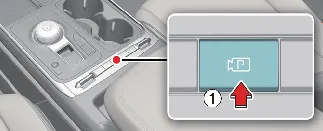
Press the Parking/View button (1) to manually turn on the Rear View Monitor and surrounding camera systems. Press the
button again at any time to deactivate the function.
Front view function
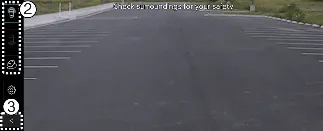
The front-view function provides a clear image of the area directly in front of your Kia Carnival on the navigation
display, based on your configured driver settings, to help you navigate tight spaces or park safely.
Parking
While parking your Kia Carnival, the front-view feature of the Surround View Monitor is activated under the following
conditions to assist with maneuvering:
-
When the transmission is in P (Park), N (Neutral), or D (Drive) and the vehicle speed is below 6 mph (10 km/h),
the monitor can be manually activated by pressing the Parking/View button (1).
-
When shifting from R (Reverse) to N (Neutral) or D (Drive), the monitor remains active provided the Kia
Carnival is moving at a speed slower than 6 mph (10 km/h).
-
The system may also activate automatically when the Forward Parking Distance Warning detects obstacles while
the vehicle is in D (Drive), provided the feature is enabled in your settings: Setup → Vehicle →
Driver Assistance → Parking Safety → Surround View Monitor Auto On.
Once the system is active, you can press the view switching button (2) on the Surround View Monitor interface to
cycle through available perspectives—such as Top View, Front-view, Side-view, or Wide View—providing a comprehensive
look at the surroundings of your Kia Carnival.
The front-view of the Surround View Monitor will automatically deactivate under the following conditions:
-
Shifting the transmission into P (Park) or R (Reverse).
-
Pressing the physical Parking/View button (1).
-
Selecting the back button (3) on the infotainment screen.
-
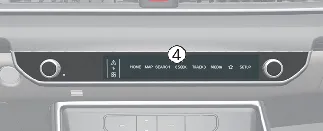
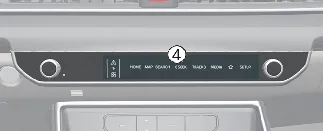
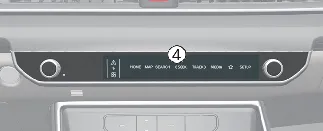
Turning off the infotainment system using the power button (4).
-
Exceeding a driving speed of 6 mph (10 km/h).
 NOTICE
For your convenience, the Kia Carnival remembers your preferences and will display the last used camera view whenever
the front-view is activated.
Rear view function
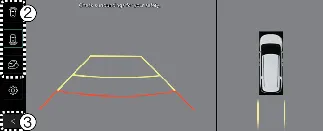
The rear-view function of the Surround View Monitor provides a clear image of the area behind your Kia Carnival on
the navigation screen. This system is fully customizable through the driver assistance settings to ensure safe and
confident parking maneuvers.
Parking
The rear-view display of the Surround View Monitor is activated in these scenarios:
-
When the Kia Carnival is in P (Park), N (Neutral), or D (Drive) and moving slower than 6 mph (10 km/h), you can
press the Parking/View button (1) and use the view switching button (2) to manually select the rear-view.
-
Automatically upon shifting the vehicle into R (Reverse).
When active, you may press the view switching button (2) on the Surround View Monitor screen to cycle between
rear-view, rear top view, rear side-view, or rear wide view to enhance visibility.
While in P (Park), N (Neutral), or D (Drive), the rear-view function will turn off if:
-
You shift the transmission to P (Park).
-
You press the Parking/View button (1).
-
You select the back button (3) on the display.
-
You press the infotainment system power button (4).
-
The Kia Carnival accelerates to a speed faster than 6 mph (10 km/h).
When your Kia Carnival is in R (Reverse), the rear-view monitor will only deactivate if the transmission is shifted
to P (Park).
 NOTICE
-
The rear-view feed is prioritized and will always display when the Kia Carnival is shifted into R (Reverse).
-
To maintain safety, the rear-view video feed cannot be turned off by the infotainment power button (4) while
the vehicle is in R (Reverse).
3D view function
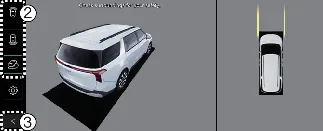
The 3D view function offers a dynamic, multi-angle perspective of your Kia Carnival, allowing you to better perceive
your vehicle's position relative to its surroundings. To use this feature, simply tap the 3D view icon on the
Surround View Monitor screen to cycle through available camera angles. You can reset the camera to the default
orientation by pressing the 3D view icon again.
The 3D view of the Surround View Monitor is activated under the following conditions:
-
When the Kia Carnival is in P (Park), N (Neutral), or D (Drive) and moving at a speed slower than 6 mph (10
km/h).
-
When selecting the 3D view button (2) while the Surround View Monitor is already active in R (Reverse) mode.
While parking, the 3D view function of the Surround View Monitor will automatically turn off under these
circumstances:
-
Shifting the transmission from N (Neutral) or D (Drive) to P (Park).
-
Pressing the physical Parking/View button (1).
-
Selecting the back button (3) on the Kia Carnival infotainment touchscreen.
-
Turning off the infotainment system via the power button (4).
-
Accelerating the vehicle to a speed faster than 6 mph (10 km/h).
When the Kia Carnival is in R (Reverse), the 3D view function will specifically deactivate if you shift the
transmission to P (Park).
 NOTICE
-
Please note that the 3D view mode does not display active parking guidelines.
-
The Top View feature, which appears alongside the Front/Rear or 3D views, uses advanced image processing from
four wide-angle cameras to synthesize a 360-degree, top-down perspective of your Kia Carnival.
-
The Top View is automatically hidden when utilizing the front or rear wide-view camera modes.
-
You can adjust your level of detail by pinching the top view area on the screen to zoom in or out.